
A budget app with CSV import: bring your transaction history into BentoMoney
The easiest way to make a new money app feel useless is to open it and find nothing there.
No grocery purchases. No old subscriptions. No record of that month when eating out got slightly out of hand.
Just a beautiful, completely empty dashboard.
Starting fresh sounds appealing until it means abandoning a year of transaction history or manually entering hundreds of purchases one at a time.
BentoMoney takes a different approach. You can import a CSV file directly on your iPhone, map the columns yourself, keep useful categories, and skip transactions that are already in the app.
You get the history without needing to link your bank.
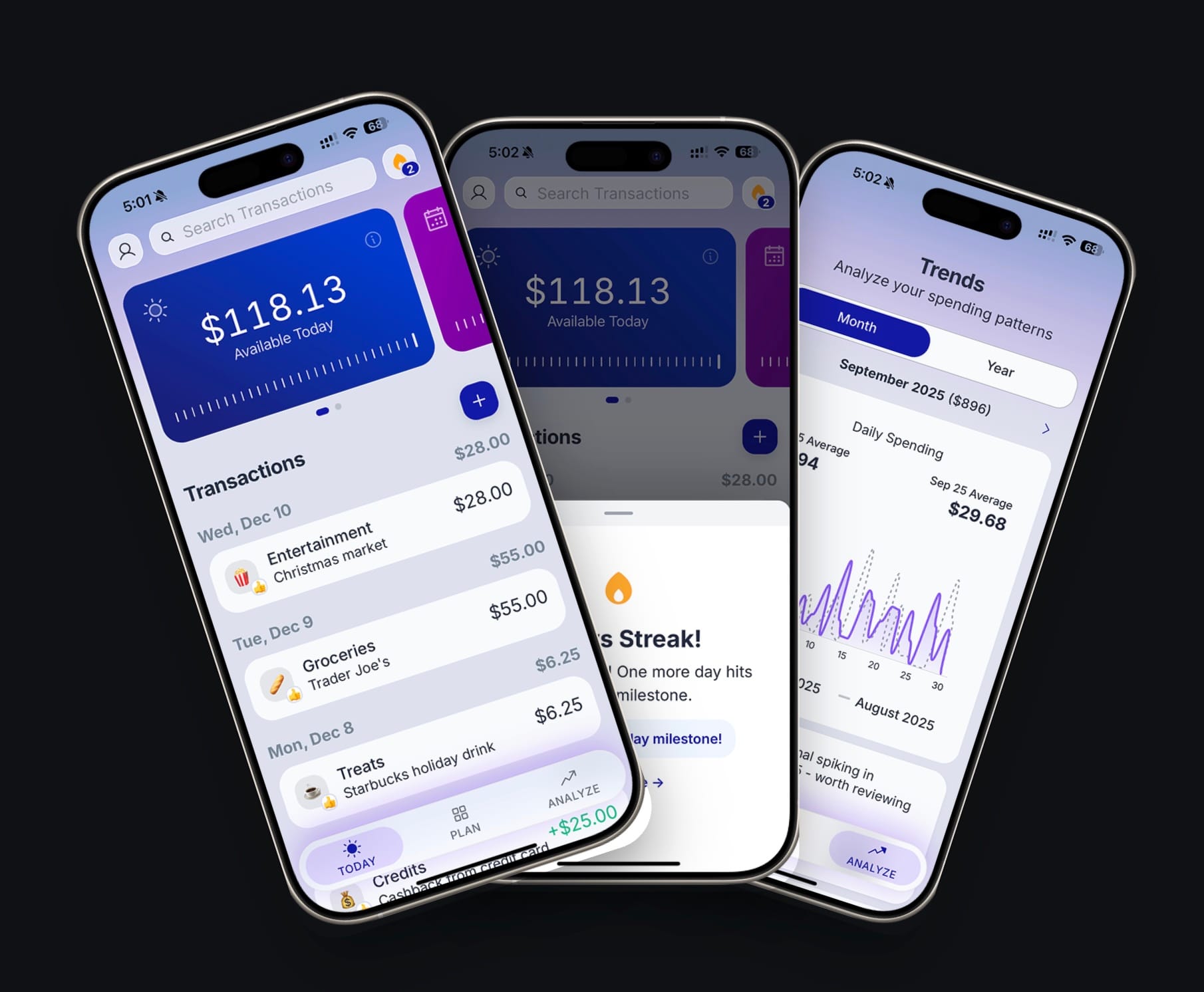
👋 BentoMoney is a privacy-focused budgeting app for iPhone that helps you track spending and manage your budget without bank connections. Import transactions on your terms and stay in control of your financial data.
Why does transaction history matter when you change budget apps?
You do not need five years of data to create a working budget. Your current income, bills, and savings amount matter far more than a coffee you bought in 2022.
Still, an empty app has very little context.
You cannot search for an older purchase. Your categories have nothing in them. The monthly view cannot tell you much about your previous cash flow because there is no previous cash flow to show.
This is where importing helps. Instead of starting at zero, you can bring over the transaction data you still care about and continue from there.
That may mean six months from a spreadsheet. It may mean an export from another expense tracker. It may be a CSV from your bank covering the current year.
The point is not to build a perfect financial archive. The point is to avoid throwing away useful history because you changed apps.
You may have reached this article after looking at Goodbudget, Quicken, or one of those "10 best budgeting apps" roundups. Comparisons usually focus on dashboards, bank connections, and subscription prices.
Data portability gets much less attention.
It becomes important the moment you want to leave.
What kind of CSV file can BentoMoney import?
A CSV file is a simple table saved as plain text.
Each row usually represents one transaction. The columns contain details such as the date, amount, description, and category.
A basic file might look like this:
| Date | Amount | Description | Category |
|---|---|---|---|
| 2026-06-12 | -18.40 | Lunch | Eating Out |
| 2026-06-13 | -62.15 | Grocery store | Groceries |
| 2026-06-14 | 2800.00 | Paycheck | Income |
You can create this kind of file in Excel, Numbers, or Google Sheets. Many banks and personal finance services can export one too.
The useful thing about CSV is that it is not tied to one company. You can open it, read it, fix a merchant name, remove an unwanted row, and keep your own copy.
BentoMoney currently uses CSV for transaction imports. If your old system exports OFX or QFX instead, you will need to export or convert the data into CSV first. You may see those other formats in some Quicken or Intuit workflows, but BentoMoney's importer is built around the simpler table format.
That keeps the process visible. You can inspect what you are about to import instead of feeding the app a file you cannot easily read.
How do you import CSV transactions on an iPhone?
The import happens inside BentoMoney. You do not need a desktop companion or a separate web app.
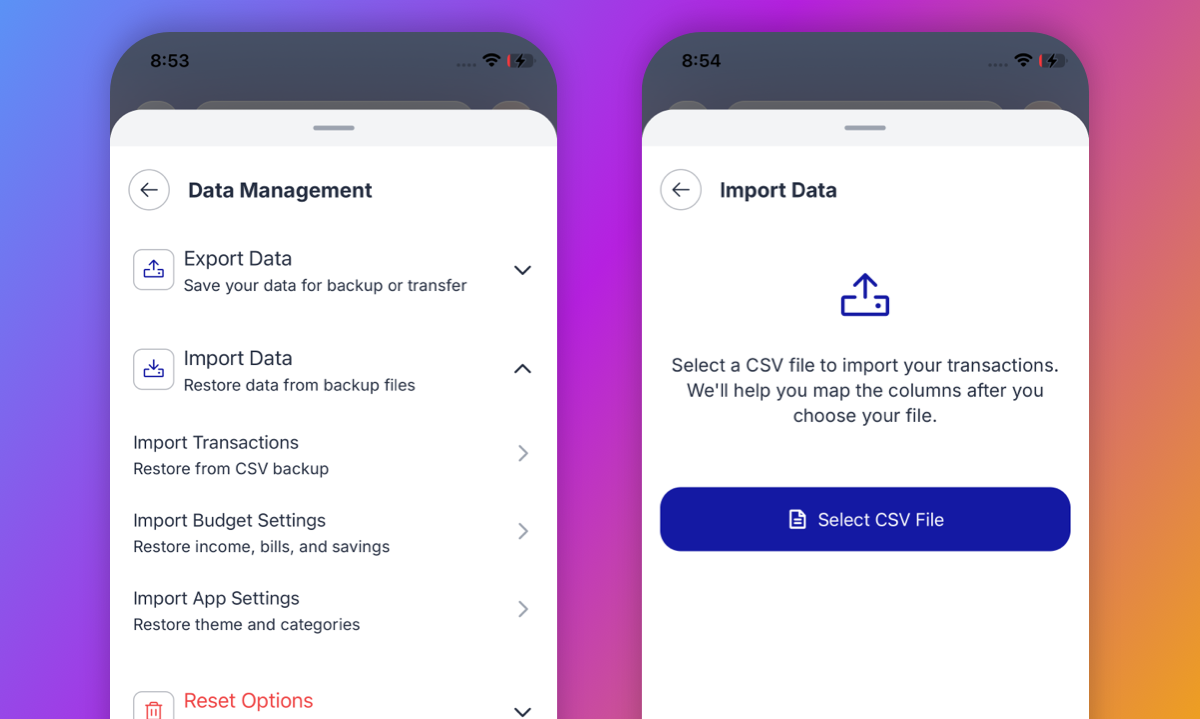
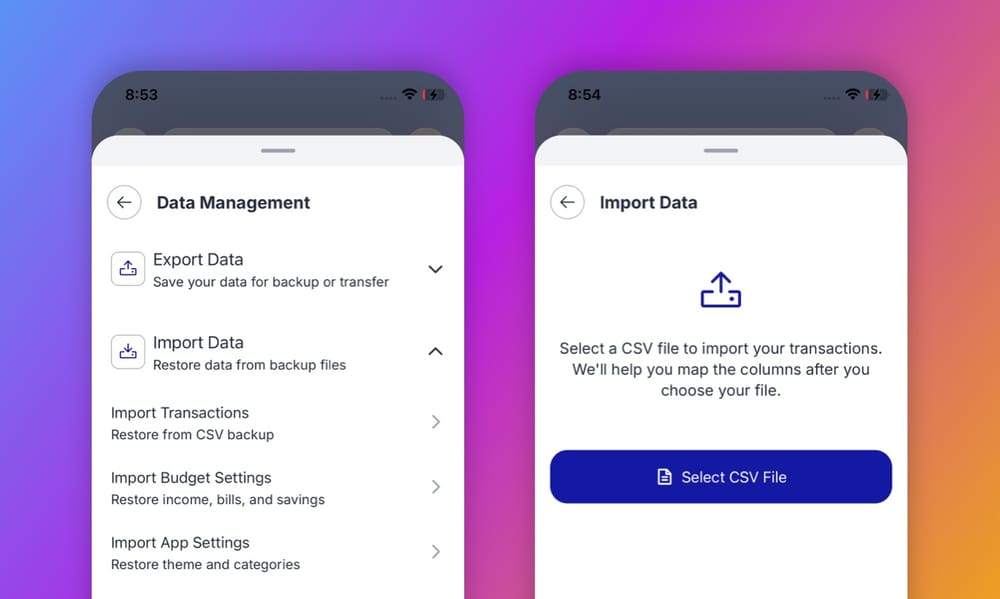
Open: Settings > Data Management > Import Data > Import Transactions
BentoMoney asks you to select a CSV file from your device. Once the file loads, the app confirms how many records it found.
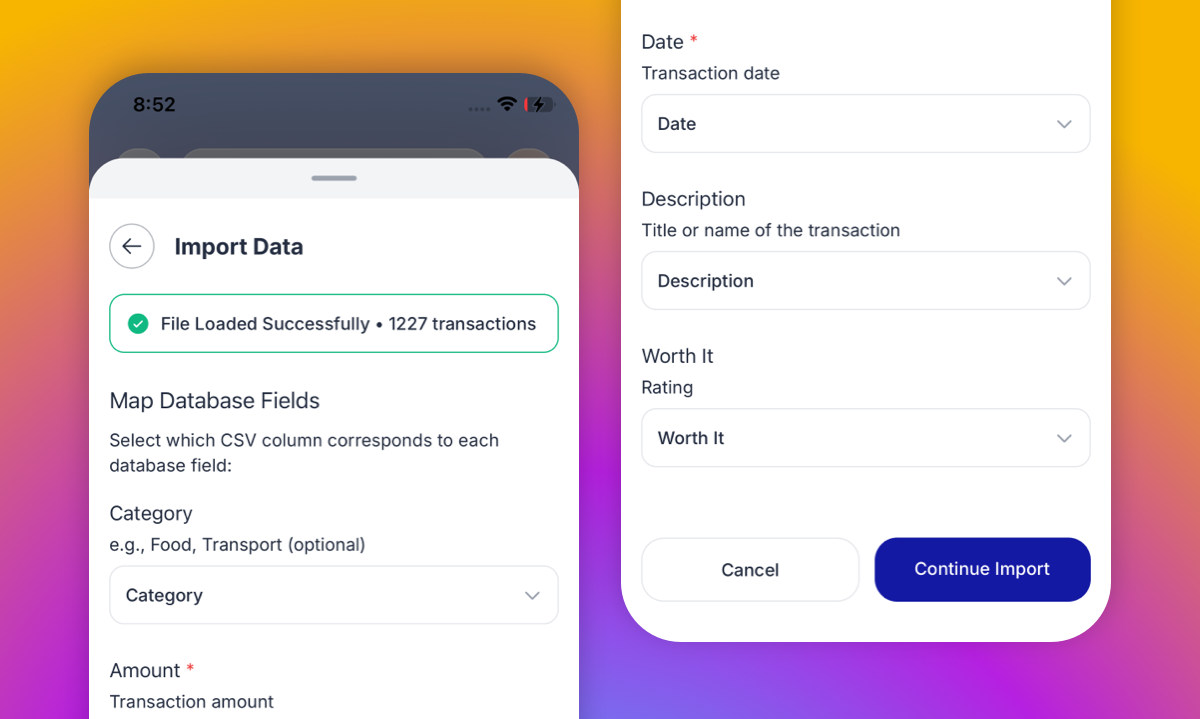
A file with 1,227 transactions, for example, appears as:
File Loaded Successfully • 1227 transactions
You then move to the column mapping screen.
This all happens on the iPhone. BentoMoney is available through the App Store and is not currently on Google Play.
You also do not need to link your bank before starting. The file can come from your bank, a spreadsheet, an older money app, or another source that supports exporting transaction history.
BentoMoney does not treat CSV import as a hidden backup feature that only understands files created by BentoMoney.
It can work with outside data because you tell the importer what each column means.
What does mapping the correct fields mean?
There is no universal CSV template.
One bank may call a column "Posted Date." Another may use "Transaction Date." A spreadsheet you made yourself may simply say "Date."
The amount column can be just as inconsistent:
- Amount
- Value
- Debit
- Transaction Total
- Cost
A rigid importer expects exact column names. If your file uses different wording, it fails.
BentoMoney avoids that problem through mapping.
After the upload, you assign the columns in your file to the correct fields in the app. BentoMoney asks for:
- Category
- Amount
- Date
- Description
- Worth It rating
Amount and date are required. The other fields are optional.
If your spreadsheet has a column named "Merchant," you can map it to Description. If your bank uses "Posted" for the date, you can assign that column to Date.
The label does not matter. The content does.
This also means you do not need to reorganize every file into a BentoMoney-specific format before importing the CSV. A quick cleanup may help, but the mapping step handles most naming differences.
It is a small design choice, but it makes the importer much more flexible. You are not forced to reshape your data around one fixed template.
Can BentoMoney categorize imported transactions?
Yes, as long as your file includes category information.
When the CSV contains a category column, you can map it during import. BentoMoney uses that value when it creates each transaction.
This is helpful when you have already spent months or years keeping things organized. Groceries can remain Groceries. Eating Out can remain Eating Out. You do not have to categorize every imported purchase again.
Of course, old categories are rarely as clean as we remember them.
You may have:
- Restaurants
- Dining
- Takeout
- Food Out
- Eating Out
They all made sense when they were created. Together, they make the new category list look like a small argument about lunch.
BentoMoney lets you clean that up after the import. You can add categories, rename them, hide ones you no longer use, change their order, and merge similar categories.
This is different from auto categorization through bank sync. BentoMoney does not download a merchant name and guess what it means.
If your old transactions were already automatically categorized, those labels can come across in the file. If they were not, you can organize them yourself.
That gives you more control, though it may require a little cleanup. Automatic categorization is convenient until a grocery store becomes "Shopping" and a pharmacy becomes "Entertainment." Those mistakes tend to survive for months because nobody feels like correcting them.
If your source uses split transactions, keep each split as its own row before import. BentoMoney reads the rows you provide rather than reconstructing a split purchase from one combined entry.
What happens if the same transaction appears twice?
This is the part that can quietly ruin an import.
Suppose you upload January through June. A week later, you forget and upload the same file again.
Without duplicate detection, your grocery spending doubles. Your income doubles too. The budget looks unexpectedly healthy for about three seconds, followed by complete confusion.
BentoMoney checks each imported transaction against the records already in the app. When it finds a duplicate, it skips it.
The completion screen tells you what happened.
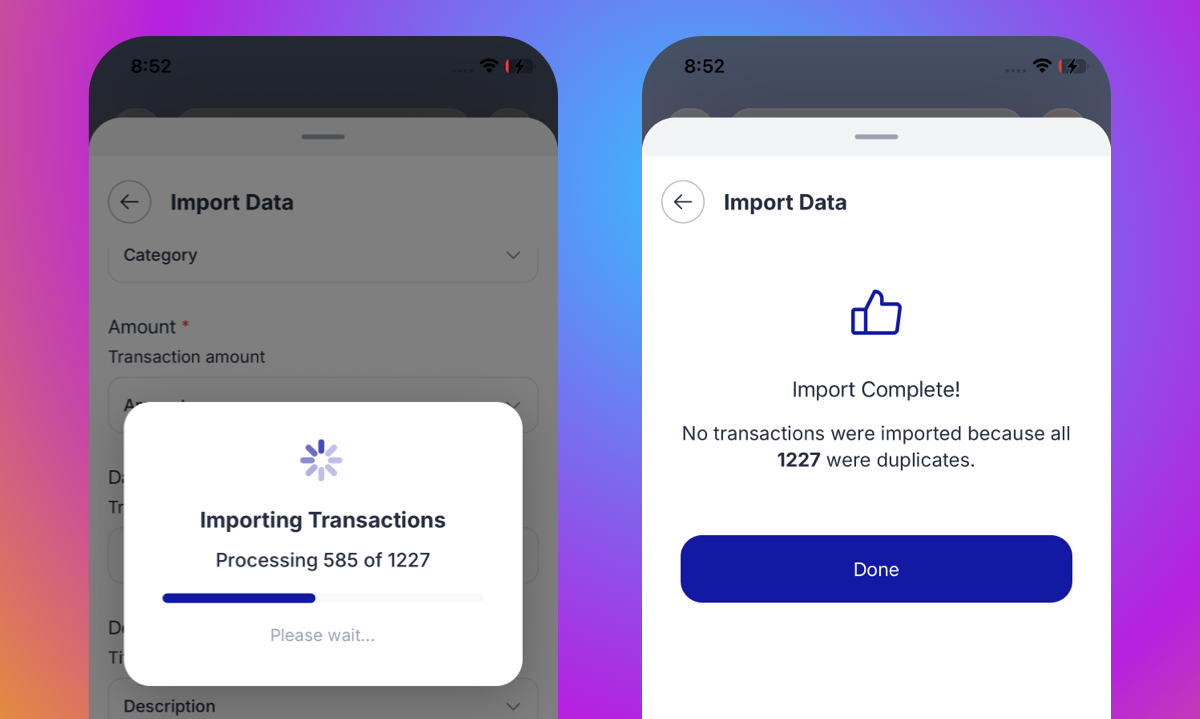
During testing, I imported a file containing 1,227 records that were already present. BentoMoney processed the file and returned:
No transactions were imported because all 1227 were duplicates.
That is a much better result than silently adding everything again.
For larger files, the app also shows its progress while it works:
Importing Transactions
Processing 585 of 1227
You can see that the importer is moving through the file rather than wondering whether the app has frozen.
Duplicate detection is useful when:
- You select the same backup twice
- Two exports cover overlapping dates
- You test the import before committing to the app
- You restore data on a new device
- Your bank statements contain repeated records
Duplicate detection prevents the same transaction record from being imported twice. It does not automatically match an imported rent payment to the rent already listed in your budget.
Those are two different problems.
Should you import rent, subscriptions, and recurring bills?
BentoMoney is not meant to reproduce every line on your bank statement.
Rent, subscriptions, utilities, and other planned expenses are already included in your budget. BentoMoney subtracts them when it calculates Available Today.
You normally should not record those payments again as regular transactions.
Otherwise, the same expense affects the budget twice.
CSV imports need a little context here. A file exported from another app may contain everything: income, rent, utilities, streaming subscriptions, groceries, and daily purchases.
That is normal. Many money apps try to create a complete ledger of every movement in every account.
For the cleanest import, remove transactions that are already represented in BentoMoney under Bills & Subscriptions. This is especially important when the file includes the current budget period.
You do not have to spend an afternoon cleaning hundreds of historical rows, though.
If the file contains older rent payments or recurring charges, you can import it as it is. You can delete those transactions later or simply leave the older history alone if it does not affect how you use the app today.
A complete export from another money app will often include both the recurring expenses and the rest of your spending. As historical data, that can still be useful. You can see what happened without having to rebuild the old system inside BentoMoney.
Going forward, the rule is simpler:
Record transactions that have not already been accounted for in your budget.
Add lunch, groceries, fuel, cash purchases, and anything else that changes what you can still spend.
Skip rent and recurring subscriptions that BentoMoney has already reserved money for.
The imported history may reflect how another app tracked money. Your daily routine in BentoMoney should reflect how BentoMoney works.
Is CSV import the same as bank sync?
No. They solve different problems.
Bank sync creates an ongoing connection between an app and your financial institution. New purchases arrive automatically, usually through an outside data provider.
CSV import is deliberate.
You choose the file. You upload it. You decide which columns to use. The app processes those transactions, and the connection ends there.
There is nothing running in the background and no bank connection waiting for tomorrow's purchases.
Bank sync can be useful when you want as little involvement as possible. It can also produce delayed transactions, broken connections, and incorrect categorization. More importantly, it encourages you to review spending after it has already happened.
BentoMoney is built around a different habit.
Import the history you want. Enter new purchases when they happen.
That keeps the budget current without requiring permanent access to banks and credit cards.
It also solves a common contradiction. Some people do not want to link their bank, but they also do not want to begin with an empty app. CSV import gives them a practical middle ground.
There is one security detail worth remembering. A CSV file usually has no built-in encryption. It is readable text, which is part of what makes it useful.
It also means you should avoid leaving copies in shared folders or email attachments after the transfer is complete.
For the broader no-bank approach, read How to budget without linking your bank account.
What else can you import or transfer?
Transaction history is only one part of your setup.
BentoMoney separates imported data into three areas.
Transactions
This contains individual expenses and income records.
Budget settings
This includes income, bills, and savings.
Some apps call the last part savings goals. BentoMoney uses the savings amount when calculating what is available to spend.
App settings
This includes things such as your theme and categories.
Keeping these separate gives you options.
You may want to import transactions from an old expense tracker without changing the budget you already created in BentoMoney. Or you may be moving to a new phone and want to restore everything.
The Data Management section also supports exporting your data for backup or transfer. You remain able to keep your own copy rather than depending entirely on a cloud account or company dashboard.
BentoMoney is not a full accounting ledger. It is not designed for transfers between accounts, investment reporting, or trying to include net worth beside every other part of your financial life.
It also does not combine savings and credit monitoring into one large household finances platform.
That narrower scope is intentional. BentoMoney is a spending tracker with a daily budget calculator. It helps you understand what you can safely spend today.
Who benefits most from a budget importer?
CSV import is useful whenever the data already exists somewhere else.
People moving from a spreadsheet
A spreadsheet gives you control, but maintaining a home budget in one can become work.
There are columns to fix, formulas to copy, and tabs that somehow multiply when you are not looking.
Importing the history into BentoMoney lets you preserve the useful part without continuing to maintain the system around it.
People leaving another money app
You may have years of transactions inside another service and no desire to start over.
The ability to import transactions makes switching less painful. You can leave the old app without leaving your history behind.
This is especially useful when you no longer want to pay a subscription for a service you barely use.
People who do not want bank sync
Your bank can export a transaction file in many cases. That gives you several months of bank statements without requiring permanent access to the account.
You can bring the information into BentoMoney once, then continue with manual tracking.
People who use both cash and cards
Old card purchases may come from a CSV file. New cash purchases can be manually entered.
BentoMoney does not care whether a transaction came from a card, cash, or another payment method. Spending still changes the amount you have available.
People who want a simpler budget planner
A large personal finance platform may track investment accounts, loans, bills, credit scores, and every other number it can find.
That is useful for some people. It is exhausting for others.
BentoMoney has one main job: calculate your Available Today number and update it as you spend.
The imported history adds context. It does not turn the app into a financial control room.
BentoMoney is free to try, but it is not completely free. You can choose an annual subscription or a lifetime purchase after the trial.
How should you prepare a file before importing it?
A quick review can save a lot of cleanup later.
Start with the amount column. Make sure the values use a consistent format. Expenses should follow the same positive or negative convention throughout the file, and currency symbols should not appear in some rows but not others.
Then look at the date column. One consistent date format is easier for any importer to process than a mix of styles.
Descriptions are optional, but they make transaction history far more useful. A date and amount can tell you that you spent $42.17. A description can tell you that it was at the grocery store.
Merchant names do not need to be perfect. They just need to be recognizable.
Check the category column too. If you have five versions of the same category, you can merge them before the import or clean them up later inside BentoMoney.
For files that include the current budget period, consider removing rent, subscriptions, and other planned expenses already entered under Bills & Subscriptions.
Remove anything else that is not a real transaction:
- Running balances
- Section headings
- Monthly totals
- Blank rows
- Notes inserted between purchases
Keep the untouched original, then create a separate copy for the upload. That way, importing the CSV does not become an irreversible editing exercise.
When you upload your CSV, make sure Amount and Date point to the correct fields. Map Description and Category when they exist. Leave optional fields unmapped when they do not.
After the import finishes, check a few transactions from different parts of the file. Look at an early date, a recent date, a large expense, and an income entry.
You do not need to audit all 1,227 rows. You just need enough confidence that the format was interpreted correctly.
Then use BentoMoney normally.
Enter coffee when you buy it. Add the cash you spent at the market. Record lunch before it becomes one of six transactions you promise to remember later.
Skip the rent payment that BentoMoney has already accounted for.
The transaction history tells you where you have been. Available Today tells you what the rest of today can look like.
What to remember
- BentoMoney can import CSV transaction history directly on iPhone.
- You do not need to link your bank or use a separate web app.
- Amount and date are required fields.
- Category, description, and Worth It are optional.
- Column mapping lets the importer work with different CSV formats.
- Existing categories can be preserved and cleaned up afterward.
- BentoMoney checks for duplicate transaction records before adding them.
- Duplicate detection does not identify bills already represented in your budget.
- For the current budget period, remove planned expenses such as rent and subscriptions when practical.
- Older recurring transactions can be deleted later or left as historical data.
- Going forward, record only spending that has not already been accounted for.
- Large transaction imports show visible progress.
- Budget settings and app settings can be restored separately.
- Keep an untouched copy of the original file before importing.
- CSV import brings your history into the app. Manual tracking keeps the budget current.